
 |
| STM32F4 |
 |
| STM32F4 Discovery |
I received my STM32F4 Discovery board few days ago. During these days I am searching for a good compiler for the STM32 which is free or provide a better code sized free version. I am already working in .Net environment using C#, and I it is pretty good. In Google search I saw STM32F4 programming using .Net, the below link.
We are
using a .net port for STM32F4, it is .Net micro framework.
I am using Visual Studio Ultimate 2010 (Compatibility of others is not known).
I am using Visual Studio Ultimate 2010 (Compatibility of others is not known).
I hope
you have an STM32F4 Discovery Board.
Necessary Tools
2.
USB Micro and USB Mini cable.
Install all the softwares.
Step 1
Connect Board to PC using Micro USB
The board will get power and power
LED & COM LED will be on, if your board is fresh the demo program will run
blinking LEDs.
The computer will look for drivers, (
I installed the drivers included in some software already, so i didn’t seen it)
Install STM32 ST-LINK Utility you downloaded. The driver will be
automatically installed.
Step 2
You need to Erase the program and
Configs in the controller.
For these, open the STLink Utility
from where you installed it.
Let’s first erase chip.
From Target select Erase chip ------Target > Erase Chip click Select ALL apply
After doing these you need to erase
sector
For these select erase sector from
target
Target >Erase sector
After these you have to load
bootloader to the Discovery board.
In the
stm32f4 Files.zip you will see some files: Open Tinybooter.hex in the STLink
Utility
From
Targets >Program
After
it’s done,
Reset the
board.
Step 3
After you have reset your board now
plug-in the USB Micro USB and connect to PC(the other USB). Most of the smart
phone cables should be Micro USB. Once
you connected the Micro USB, windows will start searching for driver and will
fail. Now we got to install the driver we downloaded from the zip
file. “STM32_WinUSB_drivers_(for_evaluation_purposes_only) “ Folder. From device manager
find the USB device then (May be its name is STM32F4 Test or unrecognized)
Double click on it, from DRIVER tab
click update diver and browse it to the folder mentioned above and update it.
Doing this you can see a device as shown in
pic. Control Panel> Devices and printers
 |
| STM32F4 Discovery Programming |
Step 4
Find the application Named MFDeploy.exe
Launch MFDeploy.exe (you should be
able to find it in C:\Program Files (x86)\Microsoft .NET Micro
Framework\v4.2\Tools\MFDeploy.exe) which you should have got when you installed
the SDK. To make sure MFDeploy can see the board do as shown below.


If you see the Ping the
everything is good till this point. Now download the other 2 .hex ER_Config.hex and ER_Flash.hex files extracted from stm32f4 Files.zip file to the
board using the MFDeploy as shown below one by one. (the Combo-box, you need to change it to USB, the STM Discovey board will be shown in right of it.)

Reset the board.
Step 5
Open Visual
C# Express/ Visual Studio Select the project type as given below

Now we need
to change the properties, so that the Visual Express/Studio will deploy to the
hardware. So change the project properties as shown below

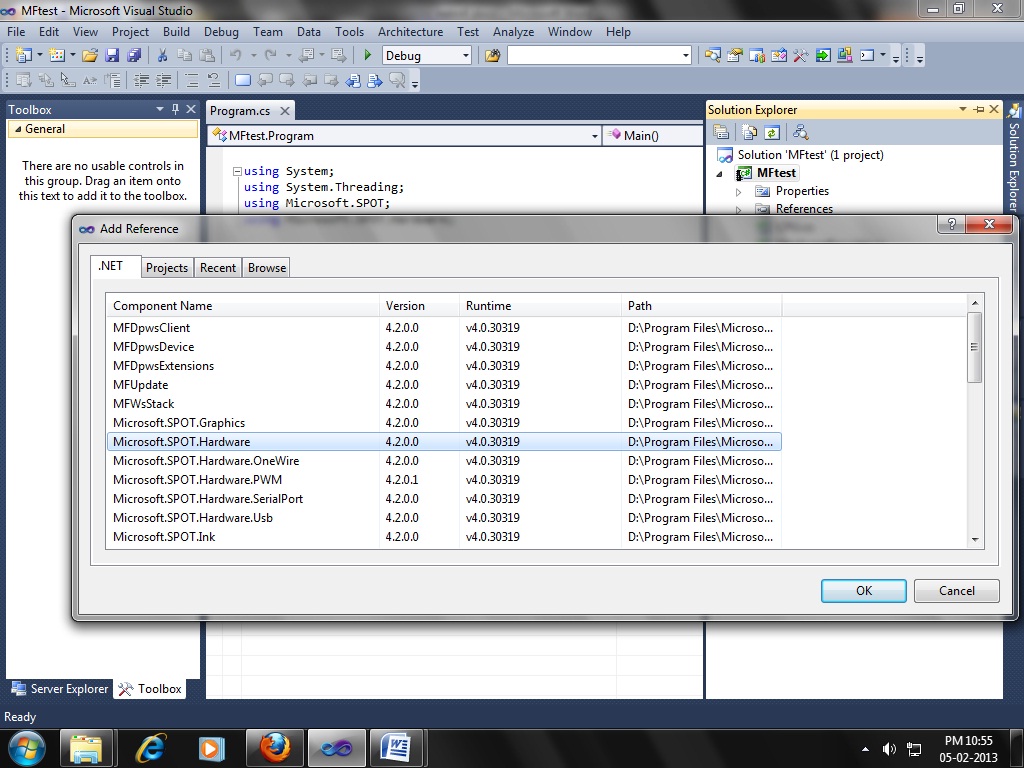
Add Reference Right Click On MFTest in Solution Explorer>Add Reference> Select the following sown in the figure>OK
Code
using System;using System.Threading;
using Microsoft.SPOT;
using Microsoft.SPOT.Hardware;
namespace MFtest
{
public class Program
{
public static void Main()
{
OutputPort led1 = new OutputPort(Microsoft.SPOT.Hardware.STM32.Pins.GPIO_PIN_D_15, false); //LED Pins of Discovery Board
OutputPort led2 = new OutputPort(Microsoft.SPOT.Hardware.STM32.Pins.GPIO_PIN_D_14, false);
OutputPort led3 = new OutputPort(Microsoft.SPOT.Hardware.STM32.Pins.GPIO_PIN_D_13, false);
OutputPort led4 = new OutputPort(Microsoft.SPOT.Hardware.STM32.Pins.GPIO_PIN_D_12, false);
while (true)
{
led1.Write(true);
Thread.Sleep(500);
led1.Write(false);
Thread.Sleep(500);
led2.Write(true);
Thread.Sleep(500);
led2.Write(false);
Thread.Sleep(500);
led3.Write(true);
Thread.Sleep(500);
led3.Write(false);
Thread.Sleep(500);
led4.Write(true);
Thread.Sleep(500);
led4.Write(false);
Thread.Sleep(500);
}
}
}
}
ADD files HardwareProvider.cs and CPU.cs to project (step is same as adding reference right click> select Add existing Item) from the zip file downloaded including the drivers.
Start debugging your code will be written to your Discovery, you can see the status at the bottom. Reset your board.
You Are Successfully Done!!!!!!!!!
Download Full Project Files
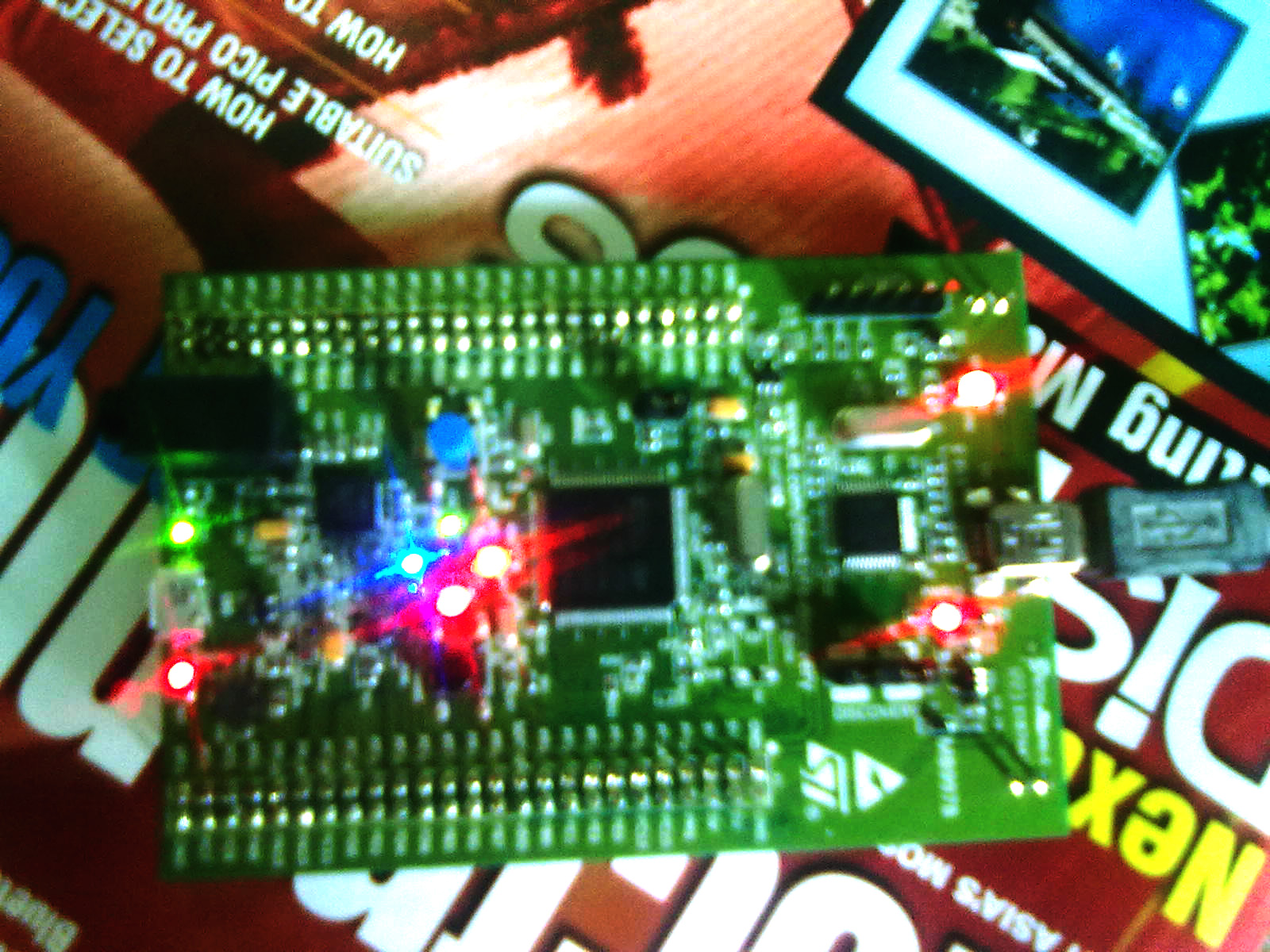 |
| STM32F4 Discovery Board |
Hello friends,
ReplyDeleteSome files are uploaded in our facebook group. If you have any trouble in downloading the file please comment here. You need to be a member in the group to download the files.
Stm32F4 Discovery Tutorial 1 Using Netmf - Setting Up The Environment >>>>> Download Now
Delete>>>>> Download Full
Stm32F4 Discovery Tutorial 1 Using Netmf - Setting Up The Environment >>>>> Download LINK
>>>>> Download Now
Stm32F4 Discovery Tutorial 1 Using Netmf - Setting Up The Environment >>>>> Download Full
>>>>> Download LINK en
Discovery is great. I run couple of shields on this like: SD Card, RTC, GPS, GSM SIM900, LCD with keypad, OneWire => iButton Reader.
ReplyDeleteIt is unfortunate that there are no people who would like to be proud of their actions of this module. Forum on codeplex looks inactive. Oberon also says nothing. New version port on netfm 4.3 would be great.
Regards
Darek
Hello Darek,
ReplyDeleteThanks for your comment and interest. I have done the Smart Home Project on Discovery. I wish to do it as open source, but i didnt found required resources. So i forced to do it using Mikroc. The support from Mikroe team and forum is great.
I would like to transform the project to open source. It would be nice if you share some resources on this. If you have a facebook ID, join our group. You can find lot of Geeks there.
Hello Vishal,
ReplyDeleteEvery thing went well except at the very end, It could not locate Microsoft.SPOT.Hardware.STM32
It finds Microsoft.SPOT.Hardware -- I am somehow missing this driver, and looked at your tutorial 4 times but I don't see where you loaded it.
Thank you for your help.
Best regards,
Norm
@Marvin Did you installed .Net Micro framework?
ReplyDeletehttp://msdn.microsoft.com/en-us/library/cc532289.aspx
ReplyDeleteThank you Vishal,
ReplyDeleteI will reload the .NET Framework and try again.
Best regards,
Marvin
Thanks for your information. And the steps given for setting up the environment is really useful. In STM32 F4 series, there are five product lines and this results in the symbiosis of real time control capabilities of Micro controller unit. They are,
ReplyDeleteSTM32F401
STM32F405/415
STM32F407/417
STM32F427/437
STM32F429/439
Chennai final year projects
It is a great work! But wouldn't it be better if ST-Link (mini USB) is used for .C# code transfer and debug so that micro usb is spare and can be used as USB device/host?
ReplyDeleteBest Regards
Pradeep Maskeri
@maskeri
ReplyDeleteUSB can be used as per requirement after uploading code.
Nice idea ! Can I do it using vb.net?
ReplyDeleteStm32F4 Discovery Tutorial 1 Using Netmf - Setting Up The Environment >>>>> Download Now
ReplyDelete>>>>> Download Full
Stm32F4 Discovery Tutorial 1 Using Netmf - Setting Up The Environment >>>>> Download LINK
>>>>> Download Now
Stm32F4 Discovery Tutorial 1 Using Netmf - Setting Up The Environment >>>>> Download Full
>>>>> Download LINK K6